Processes and Communications
What this chapter covers
- Design and implement a structure for the flow of work, including GitHub Flow
- Design and implement a strategy for feedback cycles, including notifications and GitHub Issues
- Design and implement integration for tracking work, including GitHub Projects, Azure Boards, and repositories
- Design and implement source, bug, and quality traceability
- Design and implement a dashboard, including flow of work such as cycle times, time to recovery, and lead time
- Design and implement appropriate metrics and queries for project planning, development, testing, security, delivery, and operations
- Design and implement documentation using wikis and process diagrams, including Markdown and Mermaid syntax
- Design and implement release documentation, including release notes and API documentation
- Design and implement automated documentation generation, including from Git history
- Design and implement webhooks
- Configure integration between Azure Boards and GitHub repositories
- Configure integration between GitHub or Azure DevOps and Microsoft Teams
Domain 1 is worth 10-15% of the exam but it is the glue for everything else: how work is planned, how code changes are tied back to that work, how the team measures flow, and how people find out what happened. Questions are usually short and factual (which widget, which keyword, which process) or small design scenarios (which tool for which audience). Expect to be tested on exact syntax such as AB#123, Fixes AB#123, [[_TOC_]], ::: mermaid and @GitHub subscribe.
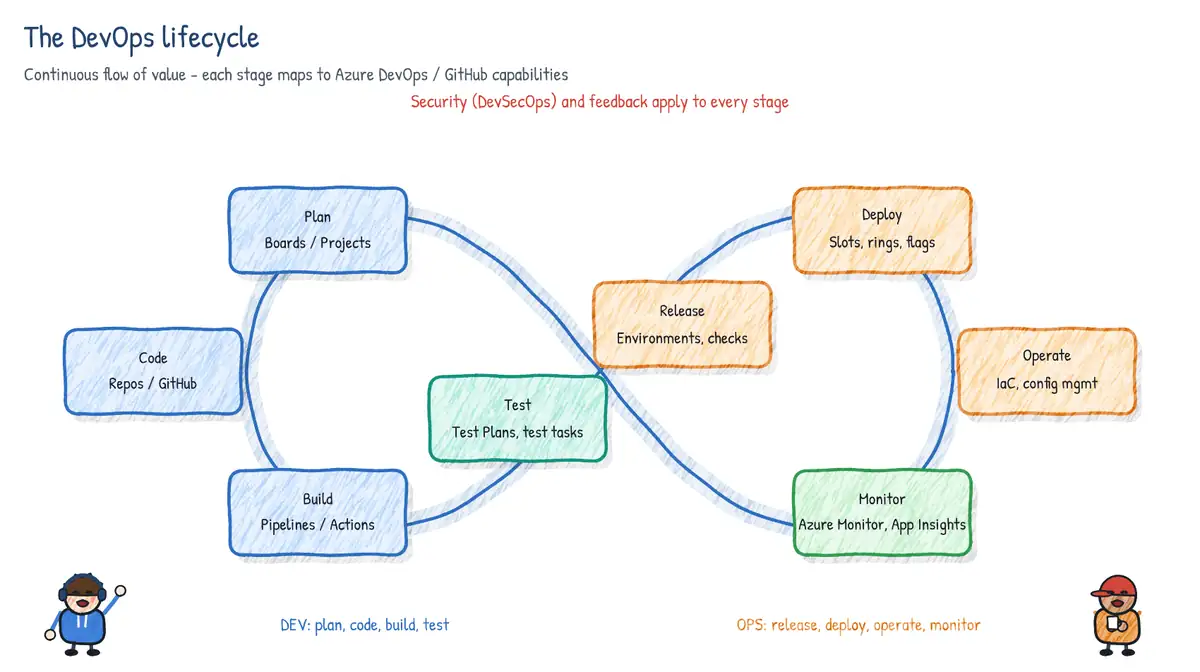
1. Structuring the flow of work
Azure Boards processes
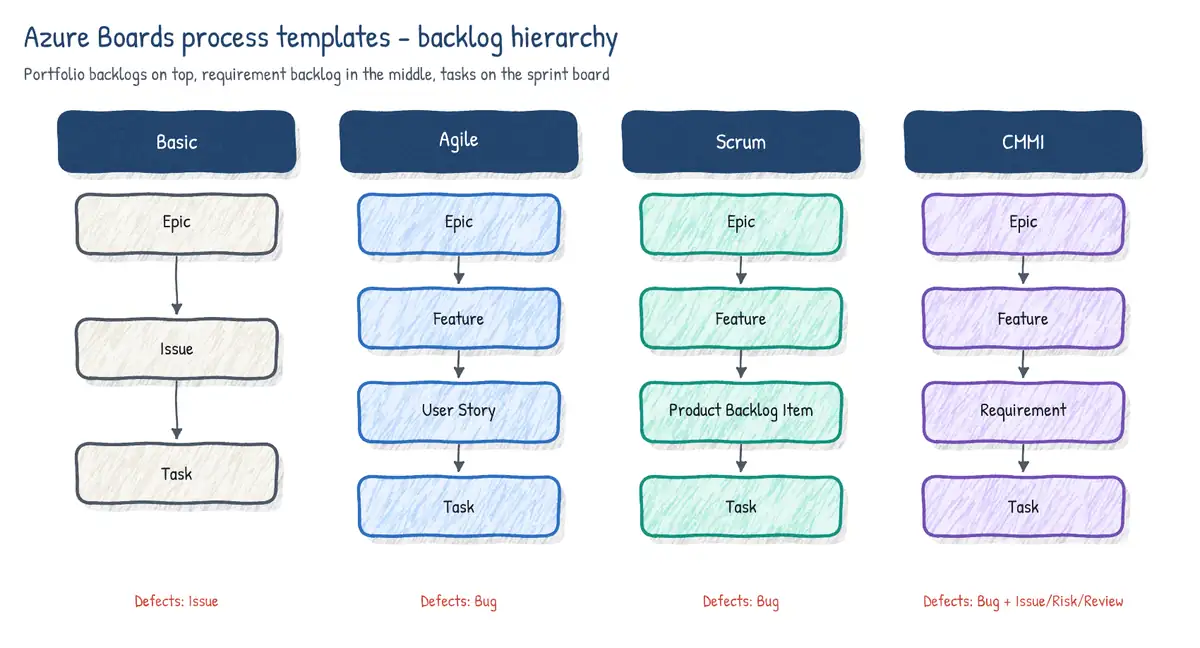
Every Azure DevOps project is created from a process that defines its work item types (WITs), fields, states and backlog levels. Four system processes ship with Azure DevOps Services: Basic, Agile, Scrum and CMMI. System processes are locked; to customize you create an inherited process (Organization settings > Boards > Process > Create inherited process) and then add fields, states, rules, custom WITs and even extra portfolio backlog levels. Hosted XML and On-premises XML are the older process models (Azure DevOps Server uses on-premises XML or inheritance). You cannot simply switch a project from Agile to Scrum base process without changing it to another inherited process derived from that base - for system processes Microsoft documents a supported change path (e.g. Basic to Agile), otherwise you create a new project and move work items.
| Process | Requirement WIT | Portfolio levels | Key workflow states | Pick when |
|---|---|---|---|---|
| Basic | Issue | Epic | To Do > Doing > Done | Simplest tracking, small/new teams |
| Agile | User Story | Epic, Feature | New > Active > Resolved > Closed | Agile teams, story points |
| Scrum | Product Backlog Item | Epic, Feature | New > Approved > Committed > Done | Scrum, sprints, Effort field |
| CMMI | Requirement | Epic, Feature | Proposed > Active > Resolved > Closed | Formal change control, audit, risks |
- Agile tracks size with Story Points; Scrum uses Effort; CMMI uses Size; Basic uses Effort on Issues. Tasks track Remaining Work in all four processes (Basic tracks only Remaining Work on Tasks).
- CMMI adds Change Request, Issue, Review and Risk WITs - a strong hint in questions that mention auditors, formal reviews or risk registers.
- Bugs can be tracked as requirements (on the backlog), as tasks (on the taskboard) or not at all - a per-team setting (Team settings > Working with bugs).
- Removed state hides an item from all backlogs and boards; Closed/Done hides it from product and portfolio backlogs but keeps it on sprint backlogs and boards.
- State categories (Proposed, In Progress, Resolved, Completed, Removed) are what Analytics, the GitHub integration and the flow widgets reason about - not the custom state names.
Work item hierarchy, iterations and areas
The default hierarchy is Epic > Feature > requirement (User Story / PBI / Requirement / Issue) > Task, linked with Parent/Child links. Each level has its own backlog and board. Area paths model ownership (which team owns which product area) and iteration paths model time (sprints). A team subscribes to one or more area paths and selects the iterations it uses; that selection drives the team's backlogs, boards, sprint pages and the team-scoped widgets on dashboards. Delivery Plans show several teams' backlogs on one calendar timeline with dependency lines, which is the usual answer to 'show cross-team dependencies to management'.
- Other useful link types: Related, Predecessor/Successor (dependencies), Duplicate/Duplicate Of, Tested By/Tests, Affects/Affected By (CMMI), plus development links: Branch, Commit, Pull Request, Build, Found in build, Integrated in build, GitHub Commit/PR/Issue.
- Board features that support flow: WIP limits per column, split columns (Doing/Done), Definition of Done per column, swimlanes (e.g. Expedite), card styling rules and tag colors.
- Stakeholder access (free) can view and edit work items and boards, but cannot use sprint planning tools or the full backlog features; Basic access is needed for most contributor tasks.
GitHub Flow
GitHub Flow is a lightweight, branch-based workflow built for continuous delivery: main is always deployable; every change happens on a short-lived, descriptively named branch; you open a pull request early to start discussion; reviews and CI checks gate the merge; after merge the change is deployed and the branch is deleted. Some teams deploy the branch to a test/staging environment before merging to validate it in production-like conditions. It is close to trunk-based development (Domain 2) but explicitly PR-centred.
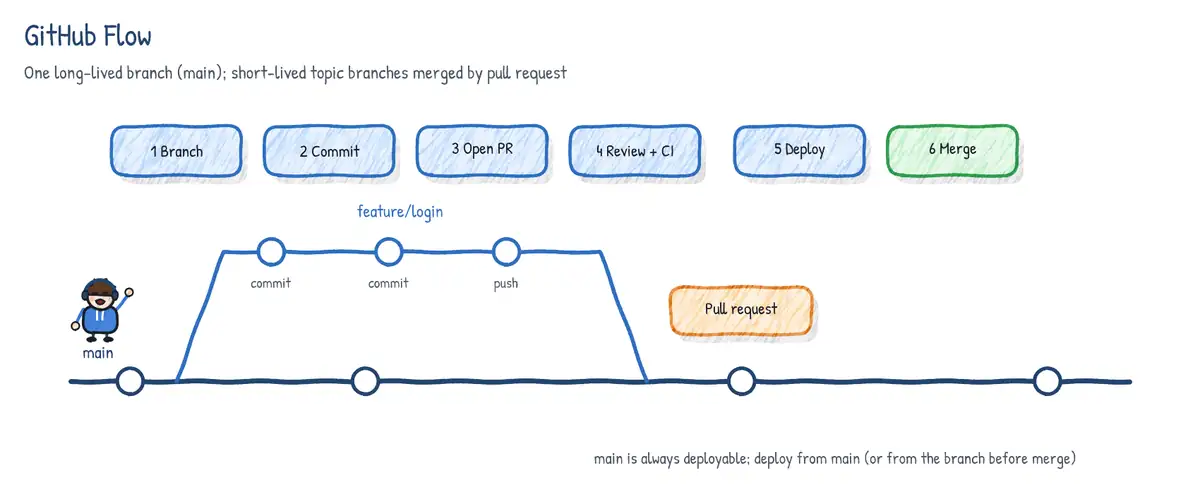
- Create a branch from
main(e.g.feature/1234-login-throttle). - Commit small, well-described changes and push frequently.
- Open a pull request (draft PRs signal work in progress); link the issue (
Closes #42). - Address review comments; CI checks and required reviewers run via branch protection or rulesets.
- (Optional) deploy the branch to a test environment.
- Merge (merge commit, squash or rebase), deploy
main, delete the branch.
| Workflow | Long-lived branches | Best fit |
|---|---|---|
| GitHub Flow | main only | Web apps/services with continuous deployment |
| Trunk-based | main only, very short branches | High-frequency CI, feature flags |
| Git Flow | main, develop, release/, hotfix/ | Versioned products, scheduled releases |
| Release Flow (Microsoft) | main + release/* cut per sprint | Large services, hotfix cherry-picks |
2. Feedback cycles: notifications and GitHub Issues
Fast feedback means the right person learns about a failure, review request or customer report quickly and with context - without drowning in noise. Design feedback loops at several layers: inner loop (IDE, pre-commit hooks, local tests), PR loop (CI checks, code review, CODEOWNERS), release loop (deployment status, approvals) and production loop (alerts, user feedback, incidents).
Azure DevOps notifications
- Personal subscriptions (User settings > Notifications) - for yourself only.
- Team and project/default subscriptions (Project settings > Notifications) - e.g. 'build fails' to the requester, 'work item assigned' to the assignee. Admins can opt users out of defaults.
- Delivery: email, SOAP, or via service hooks to external systems.
- @mentions in work item discussions, PR comments and wiki pages notify a person or group immediately;
#123links a work item and!45links a pull request. - Following a work item or PR subscribes you to all its changes.
GitHub notifications
- Watching a repository: All activity, Participating and @mentions, Ignore, or Custom (issues, PRs, releases, discussions, security alerts).
- Participating notifications fire when you are @mentioned, assigned, a review is requested, or you commented. Team mentions (
@org/team) notify all team members. - CODEOWNERS automatically requests reviews from owners of changed paths.
- Delivery via web inbox, email and GitHub Mobile; custom routing of email per organization.
- Dependabot and code scanning alerts have their own notification settings.
GitHub Issues as a feedback channel
GitHub Issues track bugs, enhancements and tasks next to the code. Issue templates and issue forms (YAML in .github/ISSUE_TEMPLATE/) collect structured reports; config.yml in the same folder can disable blank issues and point users to external support links. Labels, milestones, assignees, issue types (organization-level, e.g. Bug/Feature/Task) and sub-issues (parent/child hierarchy) structure the backlog. GitHub Discussions separate open-ended Q&A from actionable issues.
# .github/ISSUE_TEMPLATE/bug.yml
name: Bug report
description: Report a defect in the web shop
labels: ["bug", "triage"]
body:
  - type: input
    id: version
    attributes:
      label: Version
      placeholder: "e.g. 2.4.1"
    validations:
      required: true
  - type: dropdown
    id: env
    attributes:
      label: Environment
      options: ["Production", "Staging", "Local"]
  - type: textarea
    id: repro
    attributes:
      label: Steps to reproduce
    validations:
      required: true
Closing keywords link a PR or commit to an issue and close it when the change lands on the default branch: close, closes, closed, fix, fixes, fixed, resolve, resolves, resolved, followed by #42 or owner/repo#42. They work in the PR description and in commit messages, not in PR comments. You can also link manually via the Development sidebar.
3. Integrating work tracking: GitHub Projects, Azure Boards and repos
GitHub Projects
GitHub Projects (the current 'Projects', formerly 'Projects (beta)'; the classic projects are retired) is a spreadsheet-like planning surface over issues and PRs from one or many repositories in an organization or user account. Key capabilities:
- Views: Table, Board (kanban grouped by a single-select field such as Status) and Roadmap (timeline by date or iteration fields). Each view has its own filter, sort, group and slice.
- Custom fields: text, number, date, single select and iteration (sprint-like time boxes with breaks). Built-in fields include assignees, labels, milestone, repository, linked PRs, sub-issue progress and parent issue.
- Built-in workflows: auto-add items from a repo matching a filter, set Status to Done when an item is closed or a PR merged, auto-archive items, auto-close issue when Status becomes Done.
- Insights: current charts (e.g. items by status/assignee) and historical burn-up charts.
- Automation beyond built-ins via GitHub Actions and the GraphQL API (
gh projectCLI commands). - Draft issues let planners capture ideas in the project before they belong to a repository.
When to use Boards vs GitHub Projects
| Need | Azure Boards | GitHub Projects/Issues |
|---|---|---|
| Formal process (CMMI, audit fields, rules) | Strong - inherited processes | Limited |
| Multi-level portfolio (Epic/Feature) | Native backlogs | Sub-issues + issue types |
| Capacity planning, sprint burndown | Built-in | Iteration field, basic charts |
| Cross-team timeline with dependencies | Delivery Plans | Roadmap view |
| Developer-centric, open-source style | Possible via integration | Native |
| Rich analytics (OData, Power BI) | Analytics service | GraphQL API / Insights |
Azure Boards <-> GitHub integration
Install the Azure Boards app from GitHub Marketplace (or start from Project settings > Boards > GitHub connections) and authorize the GitHub repositories to connect to an Azure DevOps project. Authentication can be the GitHub App (recommended), OAuth or a PAT; GitHub Enterprise Server is supported too. Microsoft recommends connecting a repository to projects in only one Azure DevOps organization (otherwise AB# linking can behave unexpectedly), while a project can connect to many repositories. After connecting:
AB#123in a commit message, PR description or GitHub issue description creates a link from work item 123 to that commit/PR/issue.AB#in a PR title or comment does not create a link.Fixes AB#123(alsofix,fixed) moves the work item to the first state in the Resolved category, or the Completed category if there is no Resolved state, when the PR merges to the default branch. You can name a state explicitly, e.g.Closed AB#123.Fixes AB#123, AB#124transitions only the first item; repeat the keyword (Fixes AB#123, Fixes AB#124) to transition each.- From a work item you can create a GitHub branch (work item ... menu > New GitHub branch); PRs from that branch and the merge commit are linked automatically.
- The work item's Development section shows linked GitHub branches, commits, PRs and their status; the board card shows a GitHub icon and PR status.
- Add an Azure Boards status badge to the GitHub README to show board column counts.
- Azure Pipelines can build GitHub repos and link the work items it finds into the run.
git commit -m "Throttle login attempts per IP

Implements sliding-window limiter in AuthService.
Fixes AB#4812, Fixes AB#4815
Related to AB#4790"Azure Repos and Azure Pipelines linking
- In Azure Repos, mention
#123in a commit message or PR to link it; the PR Work items panel lets you link manually; a branch policy can require linked work items before completion. - PR completion options can complete associated work items after merging (state transition to the Resolved/Completed category).
- Branch and PR creation from the work item form keeps links automatic.
- Pipelines show Related work items on each run (work items linked to commits since the last successful run) and can add Integrated in build links. YAML deployments to environments show the work items and commits deployed.
- The work item form's Deployment control shows which release stages/environments the item has reached when pipelines report deployment status.
4. Source, bug and quality traceability
Traceability answers auditors' and engineers' questions: which requirement caused this change, which build contains it, which tests prove it, where is it deployed, and which bug was found in which build. In Azure DevOps the chain is assembled from links, not from a single tool.
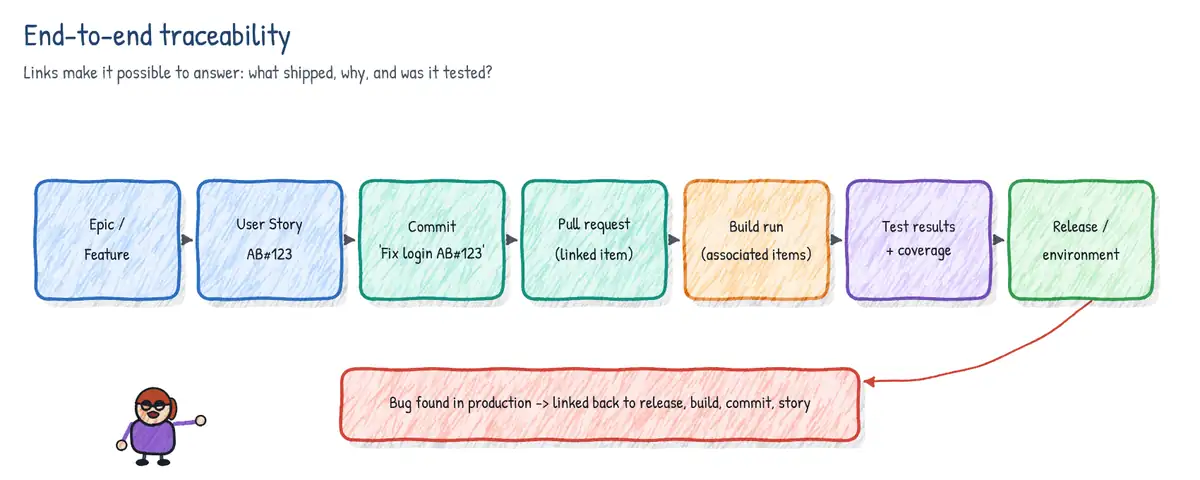
| Hop | Mechanism | Where you see it |
|---|---|---|
| Requirement -> branch/commit | Create branch from work item, #123 / AB#123 | Work item Development section |
| Commit -> PR | PR contains commits; policy 'linked work items' | PR overview, work items panel |
| PR -> build | Build validation policy; CI trigger | PR checks, run summary |
| Build -> work items | Related work items, Integrated in build | Run summary, work item links |
| Build -> release/env | Multi-stage YAML + environments | Environment deployment history |
| Requirement -> test | Test case 'Tests' link, requirement-based suites | Test Plans, Requirements quality |
| Test result -> bug | Create bug from failed test/run | Bug 'Found in build', repro steps |
- Requirement-based test suites in Azure Test Plans link test cases to user stories automatically, which feeds the Requirements quality widget and the traceability reports.
- Automated tests can be associated with test cases and run from a pipeline (Visual Studio Test task, test plan settings) so that results roll up against requirements.
- Bugs created from a failed test or from the Test & Feedback extension capture build, environment, system info and repro steps automatically.
- In GitHub the equivalent chain is issue -> branch (Create a branch from the issue) -> PR (
Closes #42) -> checks/workflow run -> deployment (environments) -> release (tag + notes). - Commit signing, required reviews and immutable audit logs strengthen traceability for compliance.
5. Flow metrics and dashboards
Lead time, cycle time, throughput and WIP
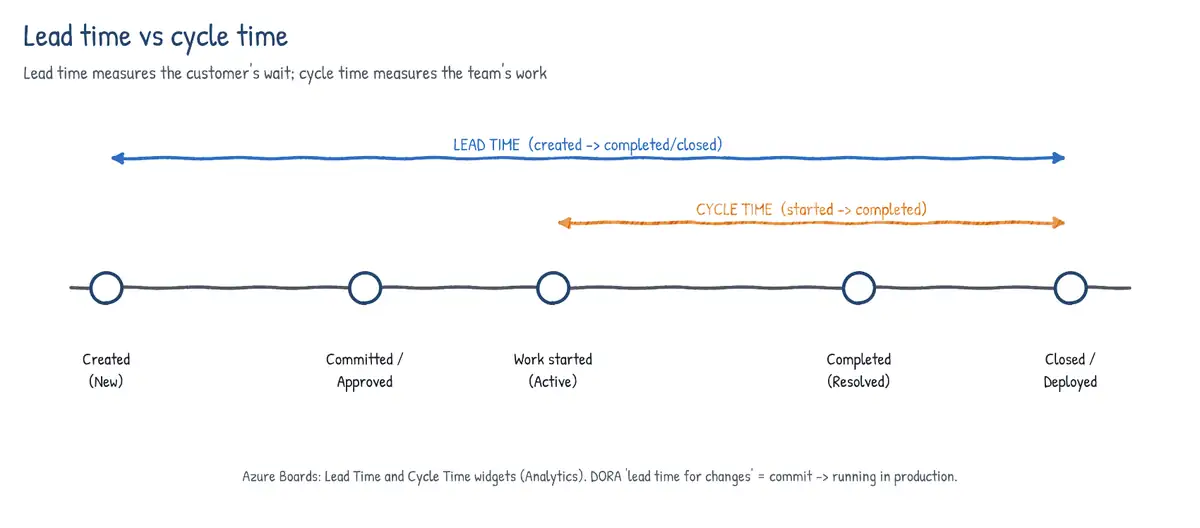
| Metric | Azure Boards definition | What it tells you |
|---|---|---|
| Lead time | Created date -> Completed (Done/Closed) | Customer view: request to delivery |
| Cycle time | First In Progress -> Completed | Team view: how long active work takes |
| Throughput | Items completed per period | Delivery rate |
| WIP | Items In Progress now | Load; high WIP lengthens cycle time |
| Velocity | Effort/points completed per sprint | Planning forecast for Scrum teams |
Little's Law ties them together: average cycle time = average WIP / average throughput. The Lead Time and Cycle Time widgets are control (scatter) charts with a rolling average and standard deviation band; you configure team, backlog level, swimlanes and time period (up to 365 days). Outliers above the band point at blocked or oversized items.
Cumulative flow diagram (CFD)
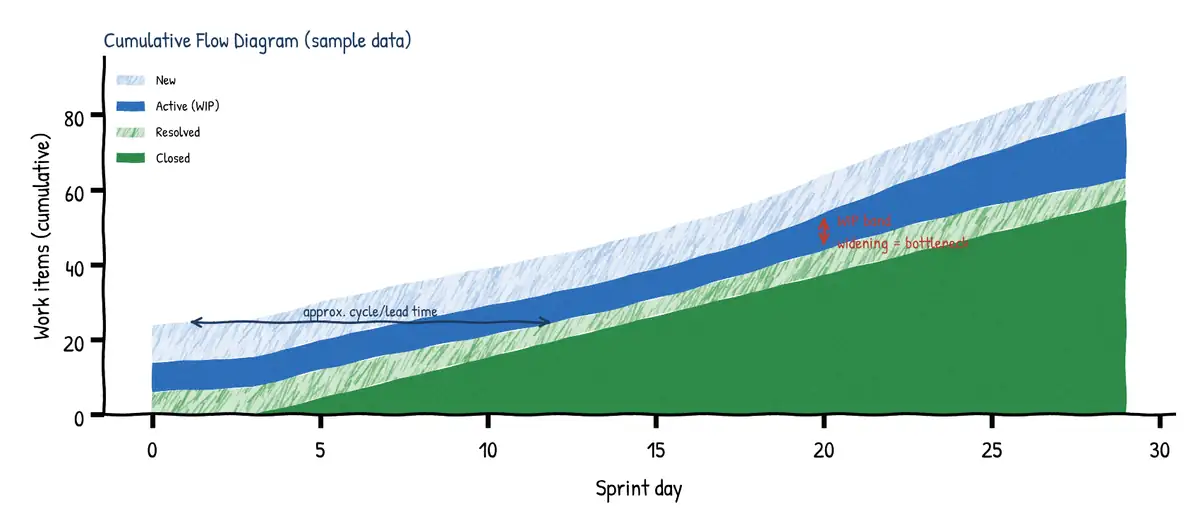
- Each colored band is a board column/state; the top edge is total work, the bottom band is Done.
- Vertical thickness of the in-progress bands = WIP at that date.
- Horizontal distance between the arrival line and the departure line = approximate cycle time / lead time.
- A band that keeps widening signals a bottleneck in that column; flat lines mean nothing is moving; a steep top line means scope is being added faster than it is completed.
- Available as the in-context CFD on the board and as the Cumulative Flow Diagram dashboard widget.
Velocity, burndown and burnup
- Velocity (in-context report and widget): planned vs completed vs completed-late per sprint; used with the Forecast tool on the backlog.
- Sprint burndown (in-context, Analytics-based): remaining work (hours/count/points) against the ideal trend, scope change line and non-working days.
- Burndown / Burnup widgets (Analytics): track any backlog level across several sprints or a release date, by count or sum of a field; burnup highlights scope growth.
- Sprint Capacity and Sprint Overview widgets show current sprint health.
DORA metrics
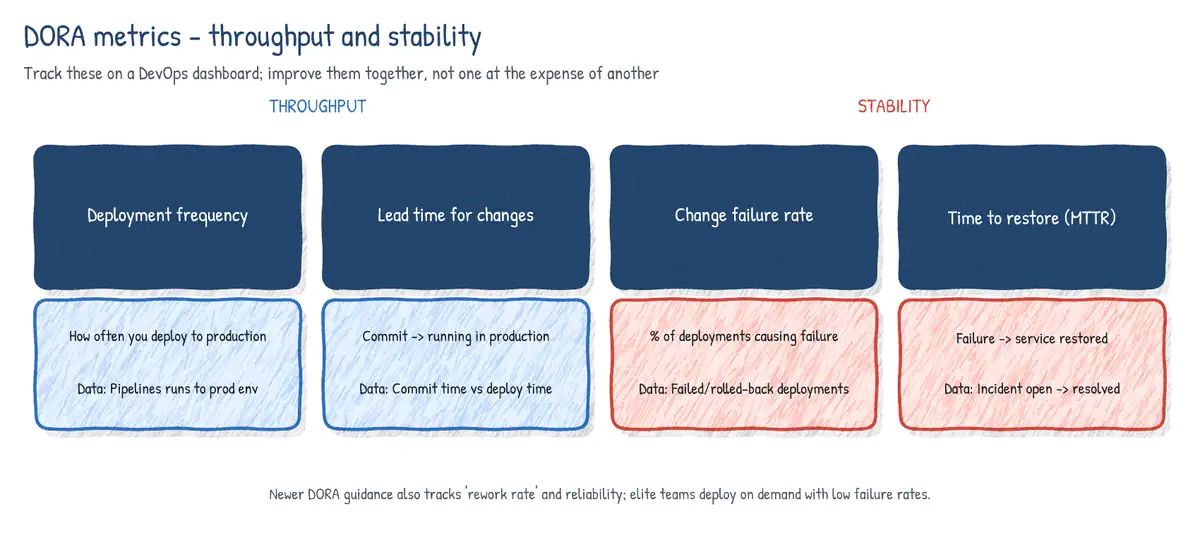
| DORA metric | Measures | Typical Azure DevOps / GitHub source |
|---|---|---|
| Deployment frequency | How often prod deploys succeed | Environment history, deployments API |
| Lead time for changes | Commit -> running in production | Commit time vs prod deployment time |
| Change failure rate | % deployments causing incident/rollback | Failed deploys, incident links |
| Failed deployment recovery time | Time to restore after a bad change (MTTR) | Incident open/close, Azure Monitor alerts |
In the original four keys the first two measure throughput, the last two stability. DORA renamed 'time to restore service' to failed deployment recovery time in 2023, and in 2024 grouped it with throughput and added deployment rework rate as an instability metric; the exam outline still says time to recovery / MTTR. Note that DORA 'lead time for changes' starts at commit, while Azure Boards 'lead time' starts at work item creation - read the question carefully.
Dashboards and widgets
Dashboards are either team dashboards (owned by a team; team admins edit) or project dashboards (permissions set per dashboard). Widgets can be team-scoped or query-based. Auto-refresh is available, and dashboards are visible to Stakeholders.
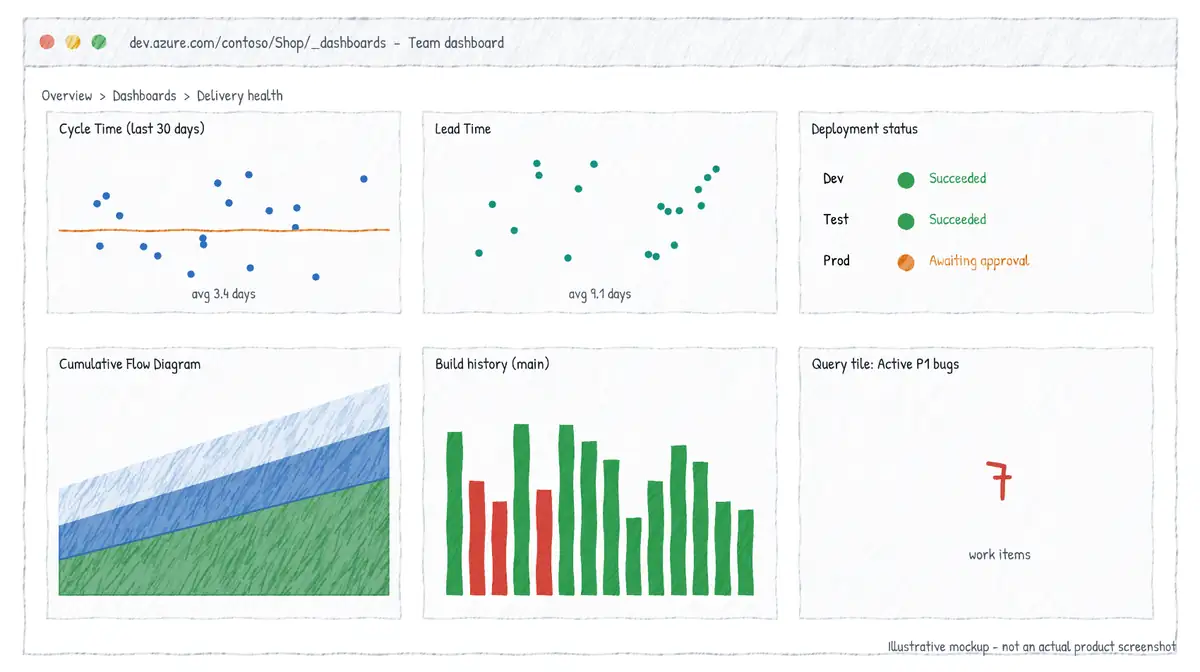
| Widget | Shows |
|---|---|
| Lead Time / Cycle Time | Control chart of completed items |
| Cumulative Flow Diagram | Item counts per column over time |
| Velocity | Points/effort or count per sprint |
| Burndown / Burnup | Progress to a target across sprints or a date |
| Sprint Burndown, Sprint Overview, Sprint Capacity | Current sprint health |
| Query Tile / Query Results / Chart for Work Items | Results of a shared work item query |
| Build History / Pipeline status | Recent run outcomes and durations |
| Deployment status | Release/environment status across stages |
| Test Results Trend (Advanced) | Pass rate and duration across runs, Analytics-based |
| Requirements quality | Test pass state per requirement |
| Markdown | Static text, links, team charter, images |
6. Metrics and queries for every area
| Area | Useful metrics | Where to get them |
|---|---|---|
| Project planning | Velocity, burndown/burnup, forecast, scope change | Boards reports, Delivery Plans |
| Development | PR completion time, review turnaround, PR size, code churn | Analytics, GitHub Insights, Pulse |
| Testing | Pass rate, flaky tests, coverage, defect density, escaped bugs | Test analytics, Test Results Trend |
| Security | Open vulns by severity, mean time to remediate, secret alerts | GHAS/Defender for Cloud DevOps security |
| Delivery | Deployment frequency, lead time for changes, pipeline pass rate/duration | Pipelines analytics, environments |
| Operations | MTTR, change failure rate, availability/SLO, incident count | Azure Monitor, Application Insights, incidents |
Pipelines analytics (pipeline > Analytics tab) gives pipeline pass rate, test pass rate and pipeline duration reports with failure trends and the top failing tasks. Test analytics add flaky test detection. Security posture for GitHub, Azure DevOps and GitLab repos is aggregated by Microsoft Defender for Cloud DevOps security, including findings from GitHub Secret Protection and GitHub Code Security for Azure DevOps (the new names for GitHub Advanced Security for Azure DevOps).
Work item queries (WIQL)
Queries are written in the query editor or in Work Item Query Language (WIQL). Three query types exist: Flat list of work items, Work items and direct links, and Tree of work items (hierarchy via Parent/Child). Only flat-list queries can drive query charts and query widgets. Shared queries live in Shared Queries folders with their own permissions; My Queries are private. Useful macros: @Me, @Today, @CurrentIteration, @Project, @StartOfMonth, @Follows, @RecentMentions, @TeamAreas.
SELECT [System.Id], [System.Title], [System.State], [System.AssignedTo]
FROM WorkItems
WHERE [System.TeamProject] = @Project
  AND [System.WorkItemType] = 'Bug'
  AND [Microsoft.VSTS.Common.Severity] IN ('1 - Critical', '2 - High')
  AND [System.State] NOT IN ('Closed', 'Removed')
  AND [System.CreatedDate] >= @Today - 30
ORDER BY [Microsoft.VSTS.Common.Priority] ASC, [System.CreatedDate] DESC-- Tree query: Features with all child stories (recursive)
SELECT [System.Id], [System.Title], [System.State]
FROM WorkItemLinks
WHERE ([Source].[System.WorkItemType] = 'Feature'
AND [Source].[System.IterationPath] UNDER 'Shop\2026')
AND ([System.Links.LinkType] = 'System.LinkTypes.Hierarchy-Forward')
AND ([Target].[System.WorkItemType] = 'User Story')
MODE (Recursive)# Run a query from the CLI (azure-devops extension)
az boards query --org https://dev.azure.com/fabrikam --project Shop \
--wiql "SELECT [System.Id] FROM WorkItems WHERE [System.State] = 'Active' \
AND [System.AssignedTo] = @Me" -o tableAnalytics, OData and Power BI
The Analytics service is the reporting store behind most modern widgets and in-context reports. It is enabled by default in Azure DevOps Services and needs the View analytics permission. Three ways to report on it in Power BI:
| Option | Use when | Notes |
|---|---|---|
| Analytics views | Business users, Boards data, simple filters | Defined in Boards > Analytics views; Power BI Data Connector |
| OData queries (Power BI OData feed) | Custom shapes, aggregation, pipelines/tests | Most flexible; server-side $apply aggregation |
| Power BI Azure DevOps connector | Quick start | Uses Analytics views under the hood |
https://analytics.dev.azure.com/fabrikam/Shop/_odata/v4.0-preview/WorkItems?
  $filter=WorkItemType eq 'User Story'
     and StateCategory eq 'Completed'
     and CompletedDate ge 2026-07-01Z
  &$select=WorkItemId,Title,LeadTimeDays,CycleTimeDays,CompletedDate
&$orderby=CompletedDate deschttps://analytics.dev.azure.com/fabrikam/Shop/_odata/v4.0-preview/PipelineRuns?
$apply=filter(Pipeline/PipelineName eq 'shop-ci'
and CompletedDate ge 2026-09-01Z)
/aggregate($count as Total,
SucceededCount with sum as Succeeded,
FailedCount with sum as Failed)7. Wikis, Markdown and Mermaid
Project wiki vs code wiki
| Aspect | Project wiki (provisioned) | Code wiki (published as code) |
|---|---|---|
| Count | One per project | Many; any folder of any Git repo |
| Backing store | Hidden Git repo ProjectName.wiki | Your existing repo + branch |
| Editing | Wiki UI (or clone the wiki repo) | Wiki UI commits to branch, or normal PRs |
| Versions | Single version | Publish multiple branches as versions |
| Review/policies | No PR flow by default | Branch policies, PR review apply |
| Best for | Team handbook, onboarding, meeting notes | Product/API docs that version with code |
- Page order is stored in a
.orderfile per folder; attachments go to.attachments. - Page file names encode spaces as hyphens (
Release-Process.md); a page can have subpages (stored in a same-named folder). - Unpublishing a code wiki removes it from the Wiki hub but keeps the repo content.
- Wiki search spans all wikis in the project; readers need Read on the backing repo.
- GitHub has a per-repo wiki (separate
repo.wiki.git) and GitHub Pages for published docs; Markdown files in the repo itself (README,docs/) render natively.
Azure DevOps wiki Markdown extras
| Syntax | Effect |
|---|---|
| [[_TOC_]] | Table of contents (case-sensitive, first instance only) |
| [[_TOSP_]] | Table of subpages ('Child Pages') |
| #123 | Link and preview work item 123 (escape a literal hash with a backslash) |
| @alias | Mention a user or group (notifies them) |
| ::: query-table <query-guid> ::: | Embed a work item query result |
| ::: video <iframe ...> ::: | Embed a video |
| ::: mermaid ... ::: or ```mermaid | Render a Mermaid diagram |
| $$ ... $$ | Math (KaTeX) formulas |
[[_TOC_]]

# Release process

> Owner: @platform-team  - Related epic: #4700

| Stage | Gate | Approver |
|-------|------|----------|
| Test  | Automated tests | none |
| Prod  | Change ticket + approval | Release managers |

- [x] Release branch created
- [ ] Release notes published

```bash
az pipelines run --name shop-cd --branch release/2026.10
```

[[_TOSP_]]
Mermaid turns text into diagrams that live in version control and diff cleanly. Both Azure DevOps wikis and GitHub (Markdown files, issues, PRs, discussions, wikis) render it. Azure DevOps supports sequence, Gantt, flowchart (as graph), class, state, user journey, pie, requirement, gitgraph, ER and timeline diagrams.
::: mermaid
graph LR
    A[Work item] --> B[Branch]
    B --> C[Pull request]
    C -->|policies pass| D[CI build]
    D --> E{Tests OK?}
    E -->|yes| F[Deploy to staging]
    E -->|no| B
    F --> G[Prod approval]
    G --> H[Production]
:::```mermaid
sequenceDiagram
participant Dev
participant GitHub
participant Boards as Azure Boards
participant Pipe as Azure Pipelines
Dev->>GitHub: push + PR "Fixes AB#4812"
GitHub->>Pipe: PR trigger (build validation)
Pipe-->>GitHub: check status
GitHub->>Boards: link PR to 4812
Dev->>GitHub: merge to main
GitHub->>Boards: 4812 -> Resolved
``````mermaid
gantt
title Release 2026.10
dateFormat YYYY-MM-DD
section Build
Feature freeze :milestone, m1, 2026-10-09, 0d
Stabilization :a1, 2026-10-09, 5d
section Release
Ring 0 (internal) :a2, after a1, 2d
Ring 1 (canary) :a3, after a2, 3d
GA :milestone, after a3, 0d
```8. Release documentation and automated docs
Release notes
Good release notes are generated, not hand-written: they come from structured commit messages, PR titles/labels and linked work items, then are edited for the audience. Options:
- GitHub automatically generated release notes: on a release (UI or
gh release create v2.4.0 --generate-notes) GitHub lists merged PRs and contributors since the previous tag; categories and exclusions are configured in.github/release.ymlby label and author. - Conventional Commits (
feat:,fix:,feat!:/BREAKING CHANGE:) plus tools such as semantic-release, release-please, conventional-changelog or git-cliff produce CHANGELOG.md and compute the next SemVer version (fix = patch, feat = minor, breaking = major). - Azure Pipelines: a script or Marketplace task (e.g. a release-notes generator extension) reads the commits and work items associated with the run via the REST API and writes Markdown to the wiki, an artifact or a GitHub release (GitHubRelease@1 task supports changelog generation).
- Plain
git logbetween two tags is the simplest building block.
# .github/release.yml - categories for generated release notes
changelog:
  exclude:
    labels: [ignore-for-release, dependencies]
    authors: [dependabot]
  categories:
    - title: Breaking changes
      labels: [breaking-change]
    - title: New features
      labels: [enhancement, feature]
    - title: Bug fixes
      labels: [bug]
    - title: Other changes
labels: ["*"]# Release notes from Git history between the last two tags
PREV=$(git describe --tags --abbrev=0 HEAD^)
CURR=$(git describe --tags --abbrev=0)
{
echo "## $CURR ($(date +%Y-%m-%d))"
echo "### Features"
git log "$PREV..$CURR" --no-merges --pretty='- %s (%h)' | grep -E '^- feat' || true
echo "### Fixes"
git log "$PREV..$CURR" --no-merges --pretty='- %s (%h)' | grep -E '^- fix' || true
echo "### Work items"
git log "$PREV..$CURR" --pretty=%B | grep -oE 'AB#[0-9]+' | sort -u | sed 's/^/- /'
} > RELEASE_NOTES.md# Azure Pipelines: generate notes and publish to the project wiki
- stage: Docs
dependsOn: Build
jobs:
- job: ReleaseNotes
steps:
- checkout: self
fetchDepth: 0 # full history so git log can walk back to the tags
fetchTags: true # new pipelines do not sync tags by default
persistCredentials: true
- bash: ./build/release-notes.sh
displayName: Generate RELEASE_NOTES.md
- bash: |
git clone https://$(System.AccessToken)@dev.azure.com/fabrikam/Shop/_git/Shop.wiki wiki
cp RELEASE_NOTES.md "wiki/Release-Notes/$(Build.BuildNumber).md"
cd wiki && git add . && git commit -m "Release notes $(Build.BuildNumber)" && git push
displayName: Publish to wikiAPI documentation
- OpenAPI (Swagger) is the standard contract for REST APIs. In ASP.NET Core, generate it with Swashbuckle/NSwag or the built-in
Microsoft.AspNetCore.OpenApi(default in .NET 9+); publish the JSON as a pipeline artifact, render with Swagger UI/Redoc, and import into Azure API Management. - DocFX builds a static documentation site from XML doc comments (
///) plus Markdown conceptual pages (and can include REST specs); output can be hosted on Azure Static Web Apps, GitHub Pages or committed to a code wiki folder. - Other ecosystems: Javadoc, Sphinx/autodoc (Python), TypeDoc, Doxygen.
- Treat docs as code: generate in CI on every merge to main, fail the build on broken links or missing docs, and version docs alongside the code (code wiki versions or tagged sites).
# GitHub Actions: build DocFX site and publish to GitHub Pages
name: docs
on:
  push:
    branches: [main]
permissions:
  contents: read
  pages: write
  id-token: write
jobs:
  build:
    runs-on: ubuntu-latest
    steps:
      - uses: actions/checkout@v4
      - uses: actions/setup-dotnet@v4
        with: { dotnet-version: '9.0.x' }
      - run: dotnet tool update -g docfx && docfx docs/docfx.json
      - uses: actions/upload-pages-artifact@v3
        with: { path: docs/_site }
  deploy:
    needs: build
    runs-on: ubuntu-latest
    environment: github-pages
    steps:
      - uses: actions/deploy-pages@v4
9. Webhooks and service hooks
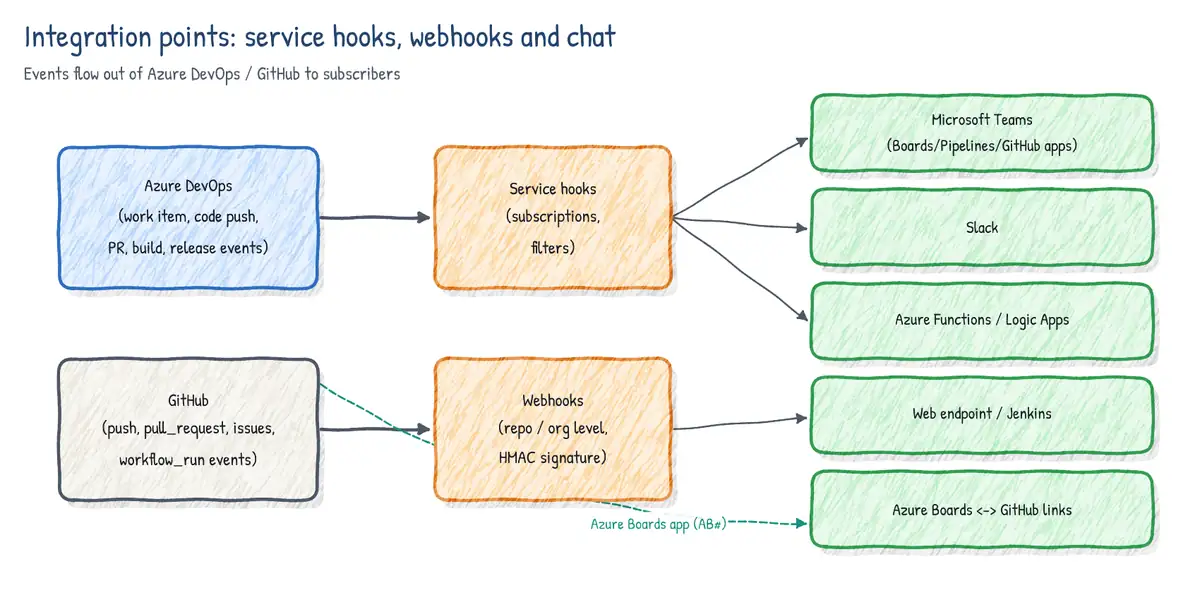
Azure DevOps service hooks (Project settings > Service hooks) subscribe a consumer to a publisher event. Publishers include work item created/updated/commented, code pushed, PR created/updated/merge attempted, build completed, run state changed, release deployment completed and more. Consumers include generic Web Hooks (HTTP POST JSON), Azure Service Bus, Azure Storage Queue, Jenkins, Slack, Trello, Grafana, Datadog and others. Filters narrow events (area path, branch, pipeline, state). Creating subscriptions needs the Edit subscriptions permission (Project Administrators by default). Failed deliveries are retried and repeatedly failing subscriptions are disabled - check the History view.
# Create a service hook via REST: POST work-item updates to a webhook
curl -u :$AZDO_PAT -H "Content-Type: application/json" \
  -X POST "https://dev.azure.com/fabrikam/_apis/hooks/subscriptions?api-version=7.1" \
  -d '{
    "publisherId": "tfs",
    "eventType": "workitem.updated",
    "resourceVersion": "1.0",
    "consumerId": "webHooks",
    "consumerActionId": "httpRequest",
    "publisherInputs": { "projectId": "<project-guid>", "workItemType": "Bug" },
    "consumerInputs": { "url": "https://hooks.fabrikam.com/azdo/bugs" }
  }'
GitHub webhooks exist at repository, organization, GitHub App and enterprise level. You choose events (push, pull_request, issues, workflow_run, deployment, release ...), a content type and a secret. GitHub signs each payload with HMAC-SHA256 in the X-Hub-Signature-256 header and identifies it with X-GitHub-Event and X-GitHub-Delivery. A ping event is sent on creation; Recent Deliveries lets you inspect and redeliver payloads. Respond with 2xx within 10 seconds and process asynchronously.
import hmac, hashlib

def verify(secret: bytes, body: bytes, header: str) -> bool:
    # header looks like 'sha256=<hex>'
    expected = "sha256=" + hmac.new(secret, body, hashlib.sha256).hexdigest()
return hmac.compare_digest(expected, header) # constant-time compare| Need | Choose |
|---|---|
| Push events to an external system in near real time | Service hook / webhook |
| Reliable, buffered processing by your own workers | Service Bus or Storage Queue consumer |
| React inside GitHub with code | GitHub Actions on: issues / pull_request / repository_dispatch |
| Pull data on a schedule for reporting | REST/OData/GraphQL API, not a webhook |
| Trigger an Azure Pipeline from an external event | Incoming Webhook service connection + resource |
# Azure Pipelines triggered by an external webhook (Incoming WebHook service connection)
resources:
  webhooks:
    - webhook: monitoringAlert         # alias
      connection: AlertWebhookConn     # Incoming WebHook service connection
      filters:
        - path: severity
          value: Sev1
steps:
  - script: echo "Alert ${{ parameters.monitoringAlert.alertName }}"
10. ChatOps with Microsoft Teams
Azure DevOps Services offers three Teams apps - Azure Boards, Azure Pipelines and Azure Repos - each addressed with @azure <service> in a channel. They are Services-only (not Azure DevOps Server) and do not deliver notifications into personal chats. Microsoft 365 (Office 365) connectors and their incoming webhooks are being retired; for custom posts use the Teams Workflows app (Power Automate) 'When a Teams webhook request is received' trigger.
| App | Key commands / features |
|---|---|
| Azure Boards | @azure boards signin | link <url> | subscriptions | addAreapath <path> |
| Azure Boards (UI) | Create work item from a message; work item URL previews |
| Azure Pipelines | @azure pipelines signin | subscribe <pipeline url> | subscriptions |
| Azure Pipelines (UI) | unsubscribe all <project url>; approve deployments in channel |
| Azure Repos | @azure repos signin | subscribe <repo url> | subscriptions; PR and push events |
| GitHub | @GitHub signin | subscribe owner/repo [features] | unsubscribe | subscribe list features |
@azure boards link https://dev.azure.com/fabrikam/Shop
@azure boards addAreapath Shop\Checkout
@azure pipelines subscribe https://dev.azure.com/fabrikam/Shop/_build?definitionId=42
@azure repos subscribe https://dev.azure.com/fabrikam/Shop/_git/shop-web

@GitHub subscribe fabrikam/shop-web reviews workflows
@GitHub subscribe fabrikam/shop-web commits:main
@GitHub subscribe fabrikam/shop-web +label:"priority:high"
@GitHub subscribe fabrikam/shop-web workflows:{event:"push" branch:"main"}
@GitHub unsubscribe fabrikam/shop-web commits
@GitHub subscribe list features- GitHub app defaults: issues, pulls, commits, comments, deployments, releases are on. reviews, workflows, branches, discussions and label filters are opt-in.
- The GitHub app supports actions from Teams: close/reopen issues, comment, and approve deployments waiting on environment protection rules.
- A Teams channel links to one Azure Boards project at a time; area paths filter which work item events appear.
- Creating Boards subscriptions in Teams requires Project or Team Administrator rights.
- Slack has equivalent apps (
/azboards,/azpipelines,/github subscribe).
11. Quick review
- Processes: Basic (Issue), Agile (User Story), Scrum (PBI), CMMI (Requirement + Change Request/Risk/Review). Customize via inherited process.
- GitHub Flow: main always deployable, short branches, PRs, deploy after merge, delete branch.
AB#idlinks GitHub -> Boards from commit message, PR description or issue description;Fixes AB#idtransitions on merge to the default branch.- Lead time (created -> done) vs cycle time (in progress -> done); CFD band width = WIP, horizontal distance = cycle time.
- DORA: deployment frequency, lead time for changes, change failure rate, recovery time.
- WIQL for live queries (flat / direct links / tree); Analytics views or OData for Power BI.
- Project wiki = one per project; code wiki = many, versioned with branches, PR-reviewed.
[[_TOC_]],[[_TOSP_]],::: mermaid(usegraph, notflowchart, in Azure DevOps).- Release notes from Conventional Commits / git log /
.github/release.yml; API docs via OpenAPI and DocFX. - Service hooks (Azure DevOps) and webhooks (GitHub, HMAC
X-Hub-Signature-256). - Teams:
@azure boards|pipelines|repos,@GitHub subscribe owner/repo features.
Use case: 'Is the login fix done?'
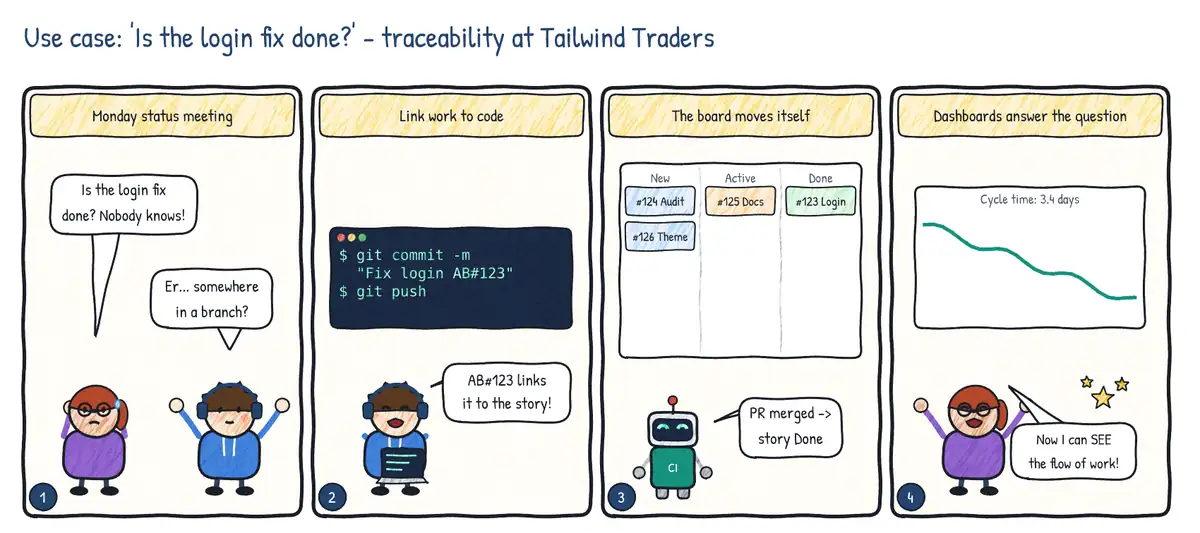
Situation. At Tailwind Traders the product manager cannot tell whether a login bug is fixed. The work item says Active, but the code was merged two days ago. Status meetings have become detective work.
| Step | Practice | Feature used |
|---|---|---|
| 1 | Mention the work item in every commit and PR | AB#123 (Azure Boards app for GitHub) or linked work items (Azure Repos) |
| 2 | Require the link before merging | Branch policy Check for linked work items / a required status check |
| 3 | Let the merge move the card | Fixes AB#123 in the PR description; state transitions on merge |
| 4 | Show the flow, not the opinions | Cycle Time, Lead Time and Cumulative Flow widgets on a dashboard |